Three settings in CS2 change what you can see and how fast you react. Everything else in that menu is a frame rate dial. Sort those two categories properly and the hardware question answers itself, because you stop buying a graphics card to solve a problem that lives in your monitor and your input chain.
Start with the thing Valve tells you and nobody reads: the Steam store page for Counter-Strike 2 lists a minimum spec and no recommended one. Windows 10 64-bit, a 2.8 GHz dual core, 4 GB of RAM, a DirectX 11 card in the GeForce 8600 or Radeon HD 2600 class. That is not a target. It is a floor low enough that Valve can honestly say the game runs. Any “recommended CS2 spec” you read anywhere, including the numbers further down this piece, is somebody’s practical judgement rather than a Valve label, and it should be presented that way.
The three settings that are not about frames
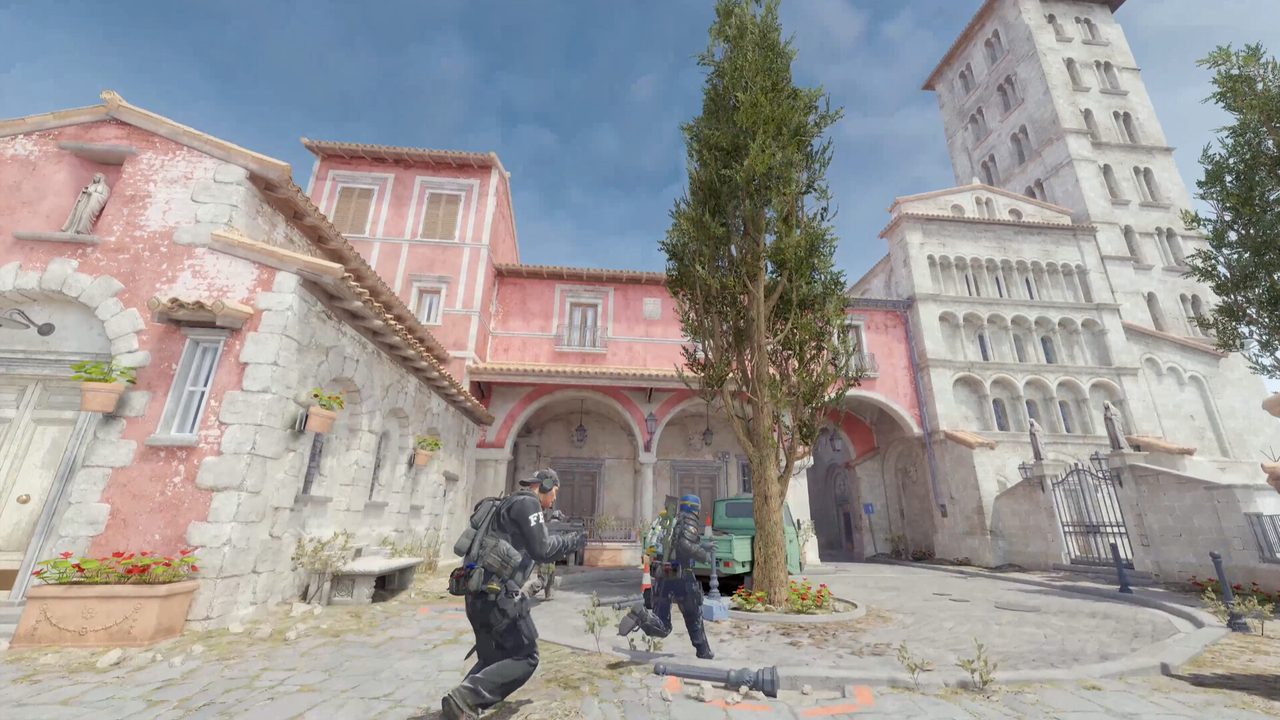
Boost Player Contrast. On. It puts a subtle separation between player models and the background, and on maps where a body sits against brick or foliage it is the difference between seeing a shape and seeing a person. It is the single option most players leave at default without ever comparing the two states. Go stand on a corner in a private server, toggle it, look at the same angle twice.
NVIDIA Reflex, set to Enabled + Boost. Reflex is not a frame rate feature and treating it as one is why people skip it. It stops the CPU from queuing frames ahead of a GPU that is not ready for them, which shortens the queue and cuts the delay between your click and the shot. Boost holds GPU clocks up when load is light, which in a game as easy to render as CS2 happens constantly. If you are on an AMD card, the equivalent is Anti-Lag in the driver rather than an in-game toggle.
V-Sync off, everywhere. In game, and in the driver profile. V-Sync exists to remove tearing at the cost of latency, and in a game where you are buying a 240 Hz panel specifically to reduce latency, that trade is backwards. Use the refresh rate instead.
After those three, you are into the frame rate dials. Global Shadow Quality is the one worth spending on, medium or high, because shadows carry information about where somebody is standing that you actually use. Model and texture detail, effect detail, shader detail: low. Anti-aliasing: CMAA2 if you want edges cleaned up cheaply, or none. Multicore rendering on. Fullscreen, not borderless, at your monitor’s native resolution and its real maximum refresh rate. Check that last one in Windows display settings, because a surprising number of people buy a 240 Hz monitor, plug it in, and run it at 60 for a year.
Boost Player Contrast and Reflex cost nothing and take twenty seconds. Nobody sells them to you, which is roughly why nobody mentions them.
Set fps_max 0 and stop thinking about it. The old habit of capping frames just above refresh made sense in an era before Reflex was doing the queue management for you.
Stretched, black bars, and the resolution argument
People will tell you 4:3 stretched makes models wider and therefore easier to hit. Models are not wider in any way that matters; the whole scene is scaled, and your crosshair scales with it. What stretched actually does is reduce your horizontal field of view, which is a real cost, and give you a smaller pixel count to render, which on a modern machine buys you frames you already had. If you learned on 4:3 and your muscle memory lives there, keep it. If you are choosing today, choose native 16:9 and spend the argument elsewhere.
Where the money goes, in order
CS2 is not a demanding game to draw. It is a demanding game to feed frames to, consistently, at a high refresh rate, which makes the spending order different from almost any other title.
Monitor first. A high refresh 1080p panel is the biggest single upgrade available to a player still on 60 or 75 Hz, and it is not close. Budget 1080p 240 Hz monitors in the 24 to 27 inch range have settled into roughly the $200 to $280 band at street prices, with sale pricing dipping below $200 for VA panels from the usual suspects. Prices move constantly, so treat that as a tier rather than a quote, and check the panel type before you buy: a fast IPS at 240 Hz is a better competitive screen than a curved VA at the same number.
CPU second. Source 2 leans on the CPU, and the frame rate floor in a smoke-heavy retake is a CPU number, not a GPU number. A modern six core part in the mid range is the sweet spot. Going from six fast cores to twelve fast cores buys you very little in this specific game.
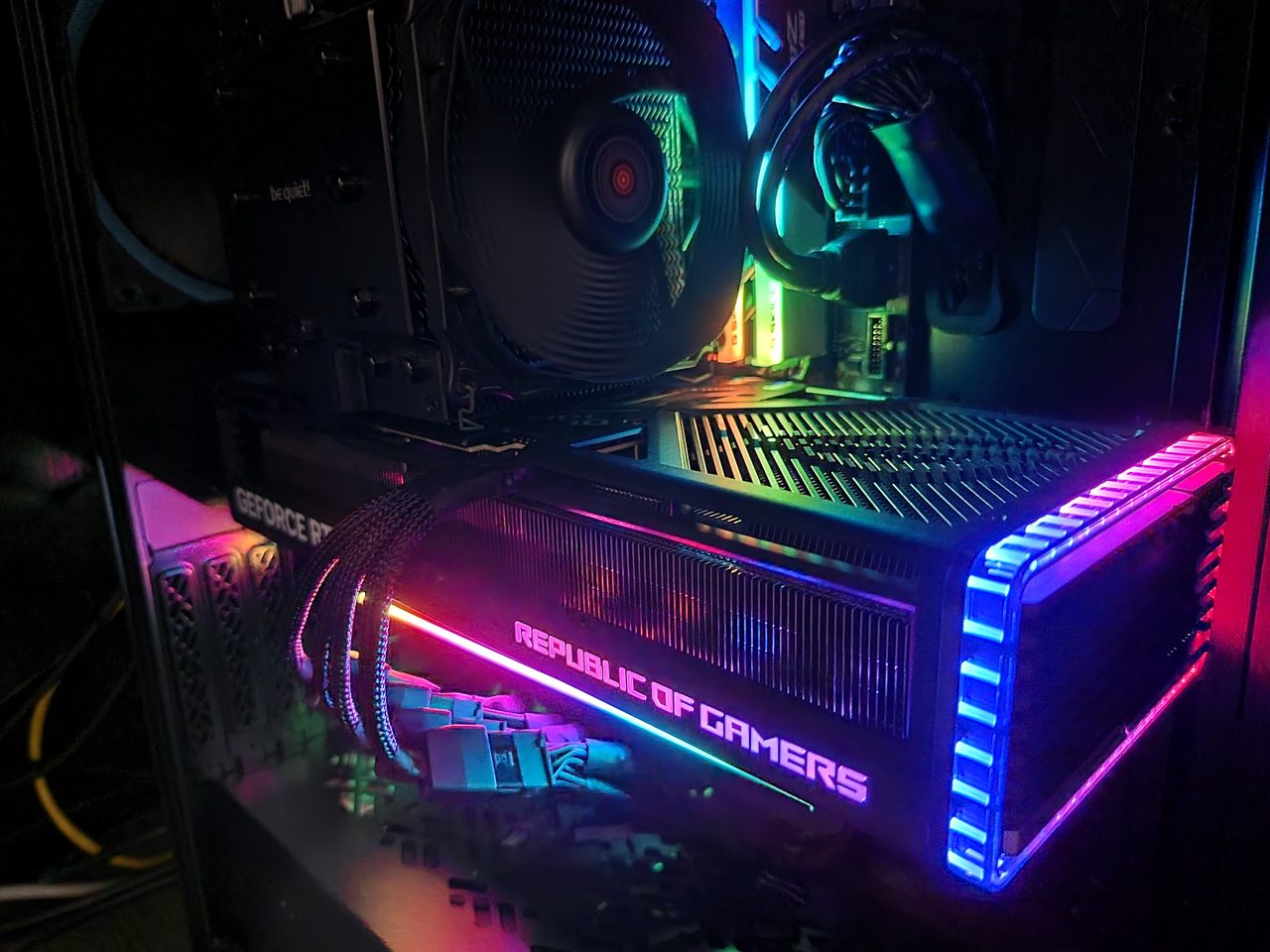
GPU third, and smaller than you think. A card in the GTX 1060 or RX 580 class with 6 GB is the widely repeated practical floor for comfortable 1080p play at high frame rates, and the community rule of thumb for reaching 144 fps at 1080p sits lower still, around a GTX 1050 or RX 560. Neither of those is a Valve figure. Both are consistent with the fact that people run this game well on hardware they bought years ago. If your card is newer than that and your frames are bad, the problem is the CPU, a background application, or Windows.
Mouse last, and cheaply. The Logitech G Pro X Superlight 2 carries a $159.99 list price and is the default answer, but it is a default because of habit as much as merit. Sensor quality at the top of the market has been indistinguishable in blind conditions for years. Weight and shape are the real variables, and shape is personal. Buy the shape that fits your grip, in the lightest version you can find of it, and do not spend $160 chasing a sensor spec you cannot perceive. A good $60 mouse in the right shape beats a great $160 mouse in the wrong one.
The free wins nobody bills you for
- Turn off Windows Game Mode. It has been a mixed bag for years and CS2 does not need it.
- Turn off every Windows spatial audio option. CS2’s own audio positioning is what you want to be hearing.
- Set your Windows mouse pointer speed to the sixth notch, the unscaled one, and do your sensitivity work in game.
- Plug the monitor into DisplayPort, not HDMI, if the panel offers both. Refresh rate ceilings over HDMI vary by cable and by panel revision, and this is a common way to silently lose half your Hz.
- Uninstall the RGB control suite. It is a background service with a driver, and it is on every list of things that cause frame time spikes for a reason.
The uncomfortable summary is that CS2 setup is mostly free. Three toggles, a display settings check, a driver profile, and an hour with the mouse you already own. The hardware conversation only starts once you have done that, and when it does, it starts with the screen.
Sources: Steam Community: CS2 system requirements, CORSAIR: CS2 system requirements, Hard2Kill: best NVIDIA settings for CS2, camelcamelcamel: G Pro X Superlight 2 price history